Visits Record Fields
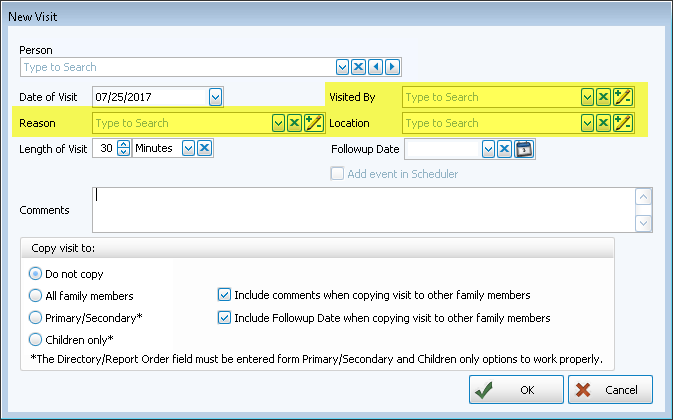
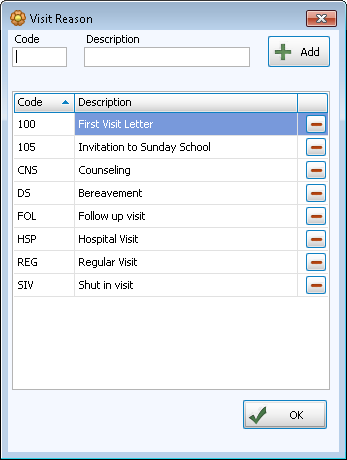
Before you begin working with the Visits section of Church Windows, it is a good idea to begin with a few choices in the Visited By, Reason, and Location fields (highlighted in yellow in the image below). They are all List fields, which means that this field will only accept entries that you have already defined. Even just one entry for each field would be fine to get started. You can always add, edit, or delete entries as necessary.
The easiest way to add to or edit the entries in Visits list fields is from the Add a Visit
screen, simply click the  Edit button next to the desired field:
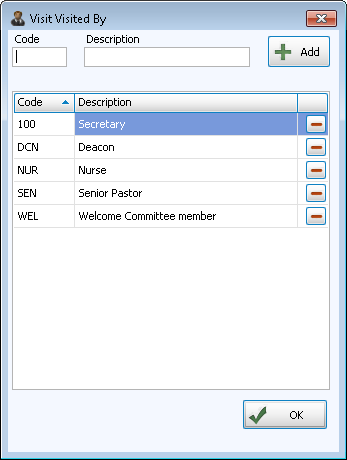
Visited By
The entries in the Visited By field represent the people who will be visiting the selected person.
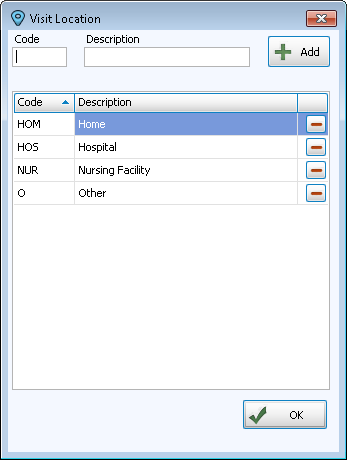
Location
In Visits, the Location field is used to note where the visit took place.
How to add list entries
- From The Initial Portal of Church Windows choose Membership.
- Choose Visits.
- In the Visits screen, click the + Add Visit button. The New Visit screen will appear.
- Enter a code and a description for the new visitor, reason, or location respectively.
- Click + Add.
- Click the Edit button to the right of one of the list fields. A dialog box will appear for that field which contains the list of codes and definitions that have already been entered (as seen in the images above).
- To remove someone from this list, click on the
 Delete button on the far right of the visitor to be deleted.
Note:
The items in any list can be sorted either by the code or the description; the default is code for most fields. When viewing the list of codes and their descriptions,
click on the header of the column by which you would like to sort the list (either the code or description) and a small, upward arrow  will appear. This will automatically order your list by that column in ascending order. However, click once more and you will see that the column has reordered the list in descending order, with the arrow pointing downwards
  .
The items will revert to being sorted by code when you navigate elsewhere in Church Windows.
.
The items will revert to being sorted by code when you navigate elsewhere in Church Windows.
